

Is It Safe to Upload That Photo? A Plain-English Guide to Privacy in Online Image Translators
You have a photo with text in another language — a menu, a document, a screenshot from a friend — and you want it translated. The quickest way is an online image translator: upload the photo, get the English back in seconds. But a reasonable question stops a lot of people first: is it safe to upload that photo? What happens to your image once it leaves your phone? This guide answers that question in plain English, explains how online image translators handle uploaded photos, and shows you how to tell a private image translator from one that keeps your files.
Try the private option now: our free image translator processes your photo right in your browser — nothing is uploaded to a server, so your image never leaves your device. Upload a photo, pick your languages, and get the translation in seconds, with no account needed.
What Actually Happens When You Upload a Photo to an Image Translator?
Every online image translator does the same two jobs: first it reads the text in your photo (a step called OCR, or optical character recognition), then it translates that text into your language. The privacy question is not about those two jobs — it is about where they happen.
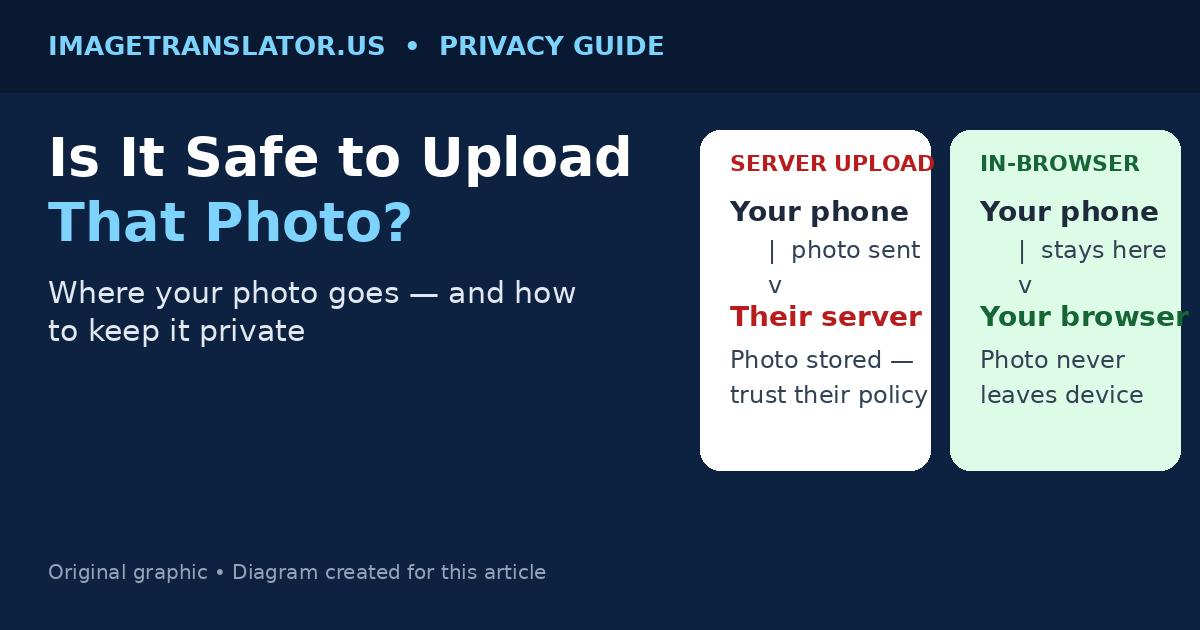
With most tools, the process looks like this:
- You upload the photo. The image file travels from your device to the company’s server over the internet.
- The server reads the text. OCR runs on their computers, not yours.
- The server translates it. The extracted text is sent to a translation service, which may be a third company.
- You get the result back. The translated text — sometimes a whole new image with the translated text drawn in — is sent to your browser.
- The file is (supposedly) deleted. Reputable services delete your upload after a set time, often minutes or hours. Less careful ones keep it longer, or do not say when they delete it at all.
That middle step is where the risk lives. Once your photo is on someone else’s server, you are trusting their promises about storage, deletion and who else can see it. A photo of a restaurant menu is low stakes. A photo of a passport, a medical letter, a child’s school form or a confidential work document is not — and those are exactly the kinds of photos people translate.
In-Browser Processing vs Server Upload: The Difference That Matters
There is a second way to build an image translator, and it changes the privacy picture completely. Instead of sending your photo to a server, the tool runs the OCR step inside your own browser, on your own device. The photo never leaves your phone or computer at all.
| Server upload (most tools) | In-browser processing | |
|---|---|---|
| Where your photo goes | Sent to the company’s server | Stays on your device |
| Who could see it | The company, its hosting provider, possibly a translation partner | Nobody — only you and your browser |
| What is sent online | The whole image file | Only the extracted text, for translation |
| Deletion promise needed? | Yes — you must trust their retention policy | There is nothing to delete; the file was never uploaded |
| Works offline? | No — needs a connection to the server | OCR works locally; only translation needs the internet |
| Typical speed | Fast, server hardware does the work | Fast for normal photos; slower on very large images |
This site uses the in-browser approach. Our image translator runs OCR in your browser using Tesseract.js, and only the recognised text is sent to the MyMemory translation service — the photo itself is never uploaded to our server. That is the whole point of the design: the privacy question answers itself, because there is no upload to worry about.
Not every tool can make that claim, and the ones that cannot should be judged on what they do instead. The next section is the checklist to use.
How to Check Whether an Image Translator Is Safe Before You Upload
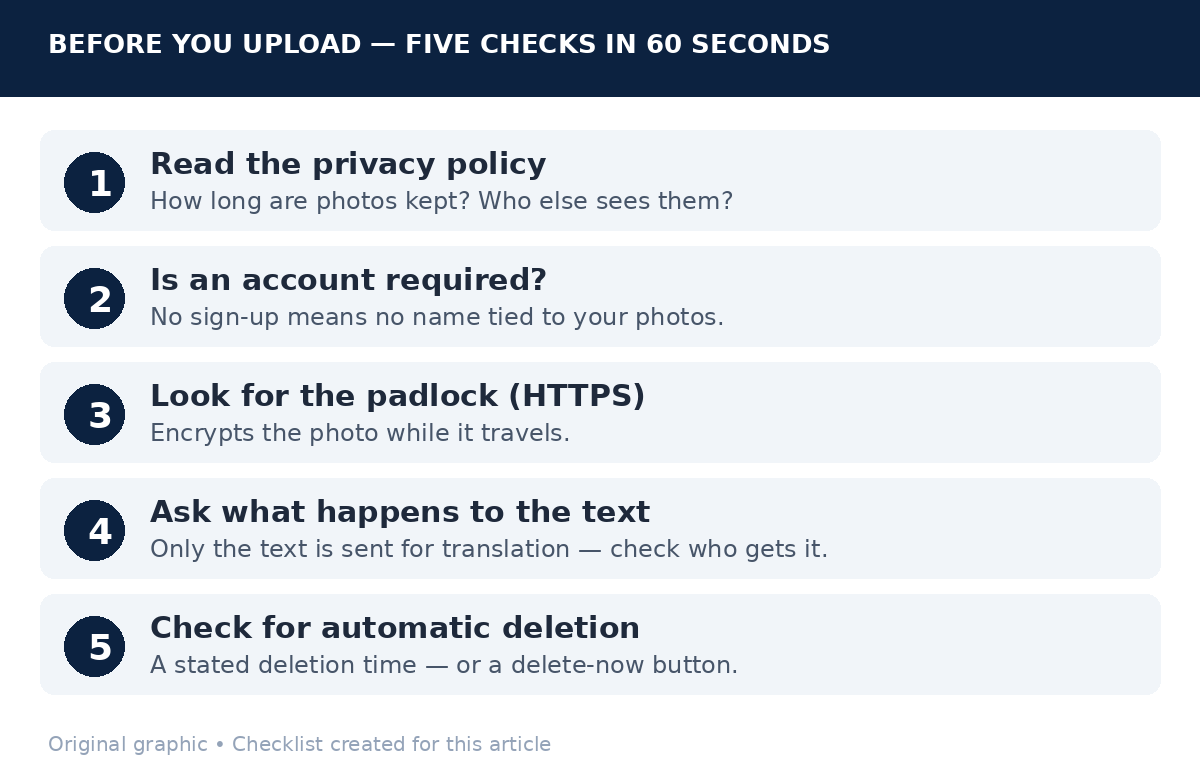
Before you upload a photo anywhere, spend sixty seconds on these five checks. A trustworthy tool passes all of them; a tool that fails two or more is one to avoid for anything personal.
1. Read the privacy policy — and look for specifics
A real privacy policy says three concrete things: how long uploaded images are kept, whether they are shared with any third party, and whether they are used to train the company’s models. Vague wording such as “we may retain files to improve our service” is a warning sign. Look for a number (“deleted within 24 hours”) and a name (which translation provider receives the text). If there is no privacy policy at all, do not upload anything personal — a tool with nothing to hide publishes one.
2. Check whether an account is required
Tools that force you to create an account before translating can link every photo you upload to your name and email address. That is not automatically unsafe — many legitimate services do it — but it raises the stakes, because a data breach then connects your identity to your files. For a one-off translation, prefer a tool that works without signing up.
3. Look for HTTPS and a clear upload notice
The address bar should show a padlock (HTTPS), which encrypts the photo while it travels to the server. Without it, the image can be intercepted on the network. Also check whether the tool tells you, before you upload, that the file goes to a server. Honest tools say so plainly; tools that hide it are not the ones to trust with a sensitive photo.
4. Ask what happens to the text, not just the image
Even in-browser tools send the extracted text to a translation service — that is how the translation happens. The question is which service, and what it does with the text. Free translation APIs commonly log queries. That is a much smaller exposure than uploading a photo — text without the image has no faces, no signatures, no document layout — but for a highly sensitive document, it is still worth knowing. A tool that names its translation provider is being straight with you.
5. Check for automatic deletion — and a way to delete now
If a tool does upload your photo, it should delete it automatically after a short, stated period, and ideally give you a “delete now” button as well. If the site says files are kept “indefinitely” or “until you delete them” with no delete option, treat every upload as permanent.
Photos You Should Think Twice About Uploading Anywhere
Even with a trustworthy tool, some photos deserve extra caution. As a rule, if losing control of the photo would cause real harm, do not upload it to a server-based translator at all — use an in-browser tool, or translate it by hand.
- Identity documents: passports, ID cards, driving licences, visas. These contain exactly the details identity thieves want, in one neat image.
- Medical documents: prescriptions, test results, hospital letters. Health information is sensitive by law in many countries, and a translation error on a dosage matters too — see our guide to translating medication labels safely.
- Children’s photos and school documents: photos showing children, school forms, or anything with a child’s full name and date of birth. Many parents do not realise a screenshot of a school message can contain all three.
- Financial and legal papers: bank statements, contracts, tax forms, court documents. Even a partial photo can expose account numbers or signatures.
- Work documents under NDA: if your employer marks material confidential, uploading it to a third-party server can breach that agreement — check your company policy first.
- Photos of other people: a photo of a friend’s letter or a stranger’s sign is not yours to upload. The privacy question applies to them too.
For everyday photos — menus, street signs, product labels, travel screenshots — the risk is low with any reputable tool. The caution above is for the small number of photos where a leak would genuinely hurt.
What About Google Translate, Google Lens and ChatGPT?
The big-name tools are convenient, and their privacy terms are public — which is a plus. But they are server-based by design, and they are built by companies whose business includes improving their products with user data. Google’s image translation uploads your photo to Google’s servers; the text and image may be used to improve Google’s services, subject to your account settings and region. ChatGPT’s image features send the image to OpenAI’s servers under its own data policy. None of this makes them unsafe for a menu photo. It does mean they are not the right choice for a passport or a medical letter, and it is worth knowing before you upload rather than after.
A dedicated image translator that processes photos in your browser gives you the same result for everyday photos, without the upload. For a comparison of the major options on accuracy and layout, see our comparison of the best image translator tools in 2026.
A Quick Privacy Checklist for Every Photo You Translate
Use this checklist before each upload, and the safety question mostly takes care of itself:
- Crop first. Only include the text you need translated. Crop out faces, signatures, addresses, account numbers and anything else in the frame that is not part of the translation.
- Prefer in-browser tools. If a tool processes your photo on your own device, there is no upload to worry about. Our image translator works this way.
- Check the policy. Sixty seconds: retention time, third parties, account requirement.
- Do not upload identity, medical or financial documents to server-based tools. Use an in-browser option or a certified human translator instead.
- Delete the original from the tool if it offers the option — and clear the photo from your downloads folder afterwards if it contains sensitive details.
- Double-check the translation of anything safety-critical. A mistranslated dosage, warning or legal deadline is a second kind of risk. Our guide to why image translations come out wrong explains the nine most common OCR mistakes — blur, glare, handwriting and more — and how to fix each one.
Frequently Asked Questions
Is it safe to upload a photo to an online image translator?
It depends on the tool and the photo. For everyday photos such as menus and street signs, a reputable tool with HTTPS, a clear privacy policy and automatic deletion is low risk. For identity documents, medical records or financial papers, avoid server-based tools entirely and use one that processes the photo in your browser, so the image never leaves your device.
Do image translators store my photos?
Server-based image translators usually store your photo at least temporarily — from minutes to days — and some keep it longer. In-browser translators do not store it at all, because the photo is never uploaded. Check the tool’s privacy policy for a stated retention time; if it does not give one, assume the file is kept.
Can an image translator see my personal information?
A server-based tool receives the whole image, including anything visible in it — faces, names, addresses, signatures. An in-browser tool never receives the image, so it cannot see any of that. In both cases, only the extracted text is sent for translation, so cropping the photo to just the text you need is the simplest protection.
Is there a private image translator that does not upload my photo?
Yes. This site’s image translator runs OCR in your browser, so your photo stays on your device and only the recognised text is sent for translation. No account is needed and nothing is uploaded to a server.
Is it safe to translate a passport or ID photo online?
No — not with a server-based tool. Identity documents are the highest-risk thing you can upload, because a single image contains everything needed for identity theft. Use an in-browser translator, or take the document to a certified translator who handles originals under a confidentiality agreement.
Does deleting the photo from my phone delete it from the translator?
No. Once a photo has been uploaded to a server, deleting your local copy does nothing to the server’s copy. You are relying on the service’s own deletion policy. This is the strongest reason to prefer in-browser processing for anything you would not want stored anywhere.
Most photo translations are low risk, and the safest habit is also the simplest: crop the photo to the text you need, use a tool that processes it in your browser, and keep identity and medical documents off server-based translators entirely. If the tool you are using cannot tell you where your photo goes, that silence is your answer — use one that can.
