

A contract arrives in German. A birth certificate is in Arabic. A supplier sends an invoice in Chinese, or a university asks for a translated copy of a diploma in Spanish. The document is on paper, or saved as a scanned PDF, and you cannot copy the text out of it. You need it in English — and you need it today.
You can translate a scanned document to English in minutes, without retyping a single page. A modern AI image translator reads the text inside the scan, works out what language it is, and gives you the English version. In this guide you will learn how to do it step by step, how to get a clean scan, and how to handle the documents people translate most often.
One thing to know first: a scanned document is an image of text, not text itself, so the quality of the scan decides the quality of the translation. A sharp, straight, well-lit scan translates accurately; a skewed or blurry one produces garbled words. Getting a good scan is easy once you know what to watch for, and a phone camera works fine for most documents.
How to Translate a Scanned Document in 4 Steps
Translating a scanned document to English takes only a few minutes. Here is the whole process.
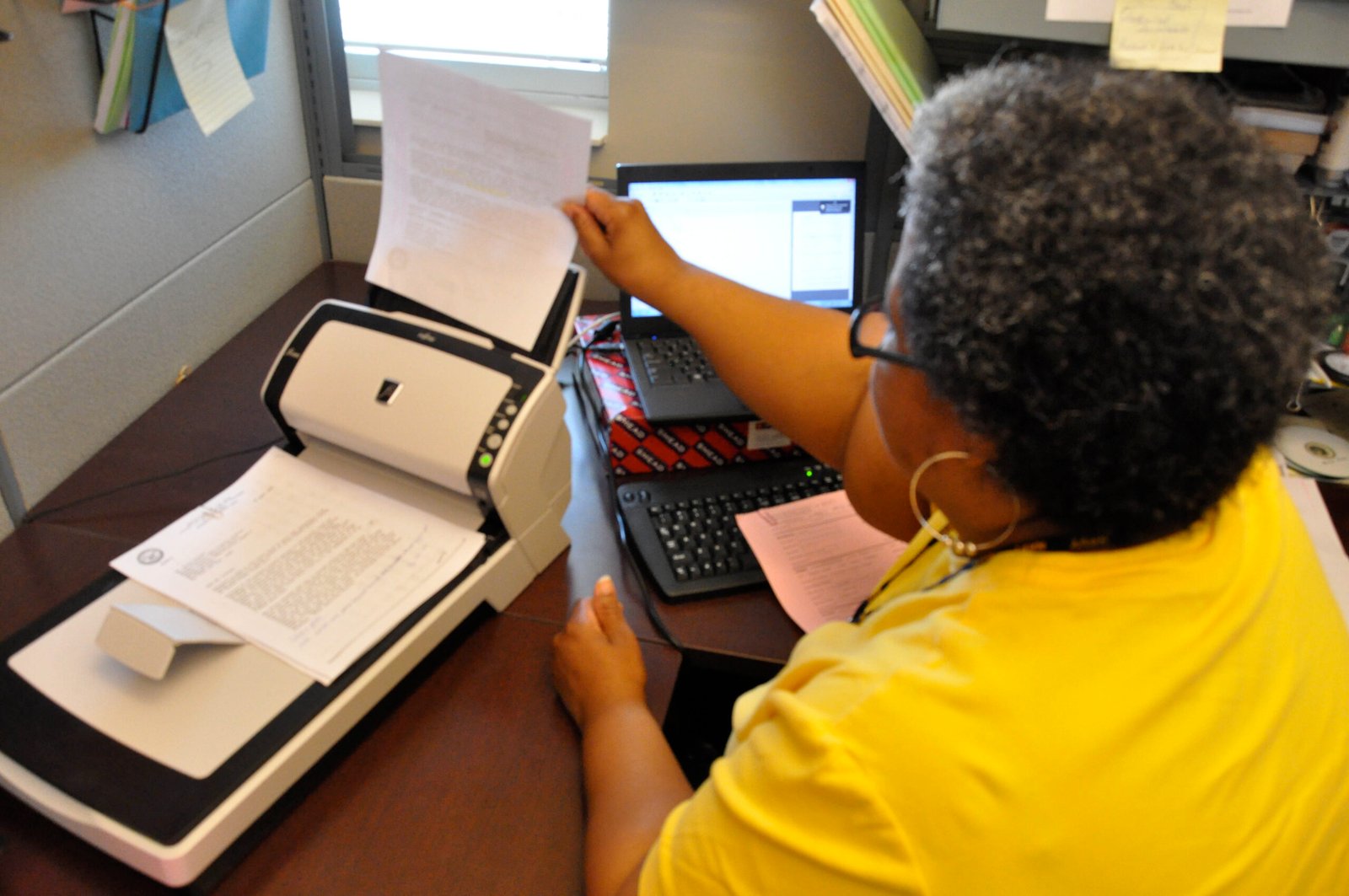
Step 1: Make a clean scan. If you have a scanner, scan at 300 DPI or higher and save the page as a JPG or PNG. If you are using a phone, lay the document flat on a plain background, hold the phone directly above it, and use your phone’s document-scan mode — it straightens the page and removes shadows automatically. Check that every line is fully visible and nothing is cut off at the edges.
Step 2: Open an AI image translator. Go to ImageTranslator and open the translation tool. You do not need to install an app or create an account, and it works in any browser on your phone or computer.
Step 3: Upload the scan. Tap upload and choose the scanned image or PDF page from your files. The tool detects the source language automatically, so you do not need to know which language the document is in. If the document is several pages long, upload one page at a time for the most accurate result.
Step 4: Read the English translation. Within seconds you will see the text from your scanned document translated into English. You can copy the translation, save it, or paste it into your own document. If a line looks odd, check the original scan: a word that was faded, folded, or half-covered will confuse any translator.
Documents People Translate Most Often
Different documents bring different problems. Here is what to expect from the ones people translate most often.
Contracts and agreements. Legal language is dense and full of terms that have a specific meaning. The translation will give you the gist reliably, but for a contract you intend to sign, always have a qualified human translator or lawyer check the final version. Pay special attention to dates, amounts, deadlines, and the names of the parties — compare them against the original scan character by character.
Certificates and diplomas. Birth certificates, marriage certificates, and university diplomas are usually short and printed in a standard format, so they translate well. The tricky parts are stamps, seals, and handwritten notes, which scanners often read poorly. If a stamp matters, translate the printed text first and note the stamp separately.
Invoices, bills, and forms. These are mostly numbers, dates, and short labels, which translate accurately when the scan is clean. Tables are the weak point: a translator reads row by row, so check that figures stayed in the right columns. Always double-check totals, tax amounts, and bank details against the original.
Common Problems and How to Fix Them
Most bad translations of scanned documents come from the scan, not the translator. Here are the problems that show up most often and how to fix them.
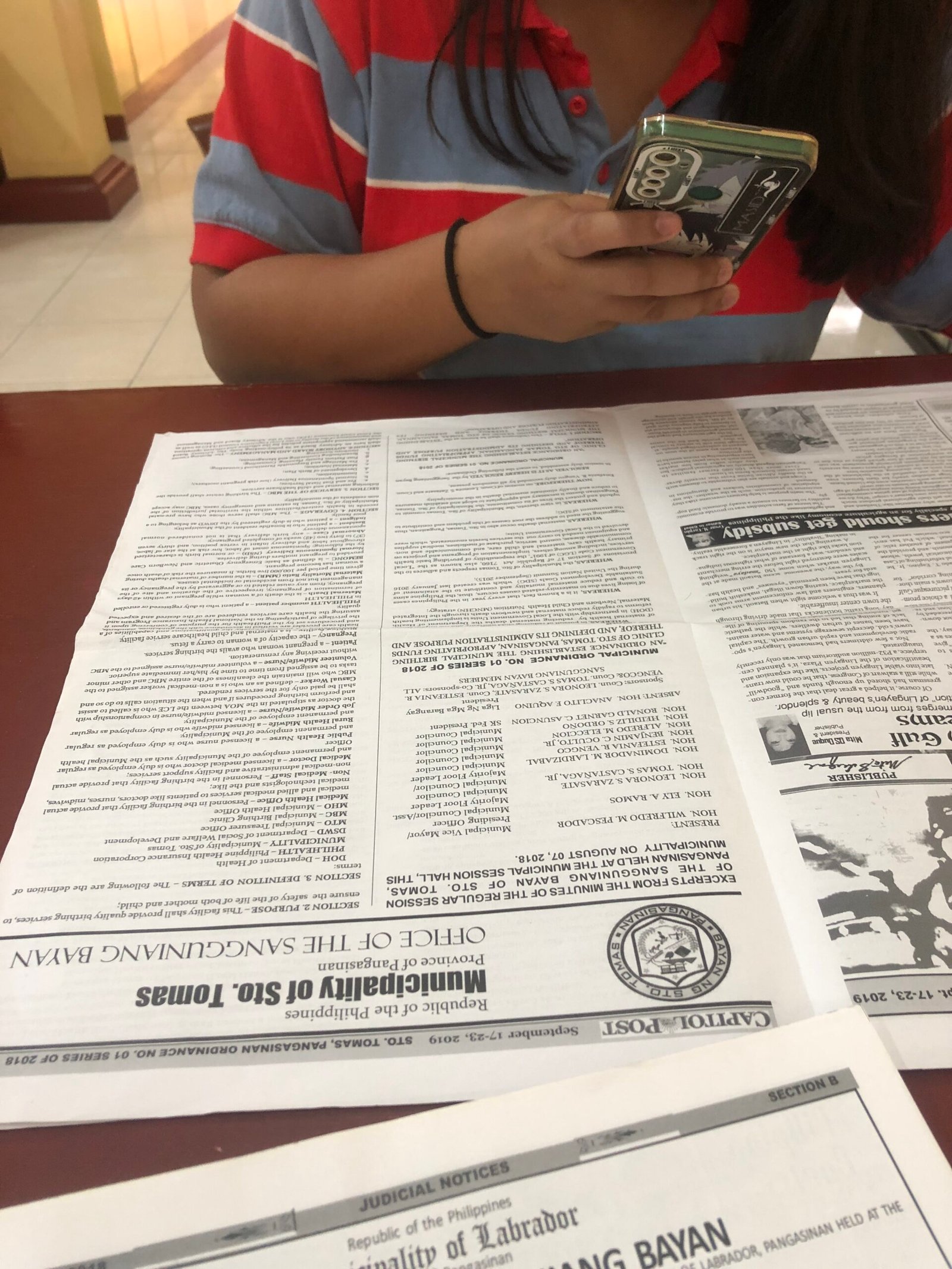
Skewed or tilted pages. A page scanned at an angle makes lines run uphill, and the translator misreads words at the ends of lines. Use your phone’s document-scan mode or your scanner’s deskew setting to straighten the page before uploading.
Low resolution. A scan below 200 DPI turns small print into a blur. Scan at 300 DPI or higher, and on a phone, move closer instead of zooming — digital zoom only enlarges the blur.
Shadows and glare. A shadow across the page or a reflection on glossy paper hides whole words. Scan in even, indirect light, and if the paper is glossy, tilt it slightly away from the light source. A flatbed scanner avoids this problem entirely.
Tips for Accurate Document Translations
A few small habits make a big difference to accuracy.
Translate one page at a time. Long documents translate better in pages than in one giant file. Errors stay contained, and you can check each page against its original before moving on.
Check numbers first. Dates, amounts, reference numbers, and names are the parts most likely to be changed by a translator. Always compare every number in the translation with the number in the original scan, especially in contracts, invoices, and certificates.
Know when to use a human. Machine translation is fast and good enough for understanding a document. But for official use — visas, court filings, certified translations — most authorities require a certified human translation. Use the AI translation to understand the document quickly, then get a certified translation for the official copy.
Scanned Document Translation vs. Typing It Out
Typing a document out by hand and pasting it into a translator works, but it is slow and it introduces typos — and a typo in a number or a name changes the meaning. Scanning and translating the image keeps the original wording intact and takes minutes instead of hours.
Frequently Asked Questions
Can I translate a scanned PDF to English?
Yes. If the PDF is a scan (an image of the pages), upload the pages as images to an image translator. If the PDF has selectable text, you can also copy the text into a regular translator — but for scanned PDFs, the image route is the one that works.
Is it safe to upload a scanned document?
Scanned documents often contain personal information, so only use a translator you trust. Remove or cover pages you do not need translated, and avoid uploading identity documents, bank statements, or anything with passwords. Crop the scan to just the pages you need.
Try It Now
The next time a document in another language lands on your desk, do not retype it and do not guess. Scan it cleanly, upload it to ImageTranslator, and read it in English in minutes. It works for contracts, certificates, invoices, letters, and anything else that arrives on paper.
Read next
- How to Translate Text in a Screenshot to English
- How to Translate Korean Text in Images to English
- How to Translate Text in an Image Online
- How to Translate a Photo From Any Language to English in Seconds
- How to Translate a Foreign Restaurant Menu With Your Phone Camera
- How to Translate Street Signs and Airport Boards While Traveling
