

This article is part of our complete guide to translating photos from any language. To translate your own picture right now, use our free Russian to English image translator.
Russian text can appear in many places, from street signs and restaurant menus to product labels, documents, screenshots, and social media images. If you don’t read Russian, understanding text inside a photograph can be difficult—especially when the words cannot be copied or selected.
The good news is that you don’t have to type Russian text manually. An image translator can use Optical Character Recognition (OCR) to detect Russian writing in a photo and then translate it into English.
In this guide, we’ll explain how to translate Russian text in photos to English, how Russian OCR works, and how to get better results when translating images online.
What Is Russian Image Translation?
Russian image translation is the process of detecting Russian text inside a photograph and converting it into English.
An image translator typically combines two technologies:
- OCR (Optical Character Recognition): Detects and extracts text from the image.
- Machine translation: Converts the recognized Russian text into English.
Instead of manually copying the Russian text, you can upload the photo and let the tool process the content automatically.
The basic process looks like this:
Russian Photo → OCR → Russian Text → English Translation
Some image translation tools can also place the translated English text back onto the original image, making the result easier to understand in its original visual context.
Why Can Russian Text Be Difficult to Translate From Photos?
Russian uses the Cyrillic alphabet, which differs from the Latin alphabet used by English. Some Cyrillic letters may also look familiar to English readers while representing different sounds.
For example, Russian uses characters such as Ж, Ш, Ч, Я, Ю, and Щ, which aren’t part of the English alphabet.
Photo quality can create another challenge. Blurry images, unusual fonts, poor lighting, shadows, reflections, and curved surfaces can make individual characters harder for OCR systems to recognize.
This is why the quality of the original photograph matters when translating Russian text from an image.
How to Translate Russian Text in a Photo to English
With an online image translator such as ImageTranslator.us, you can translate Russian text without manually typing the original content.
Step 1: Take or Choose a Clear Photo
Start with a photograph containing Russian text.
It could be:
- A street sign
- A restaurant menu
- A product package
- A scanned document
- A book page
- A screenshot
- A poster
- A social media image
For the best results, make sure the Russian text is clearly visible and isn’t heavily blurred.
Step 2: Open an Online Image Translator
Go to ImageTranslator.us and upload your image.
An online image translator lets you process the photograph directly from your browser, so you don’t need to manually enter the Russian characters.
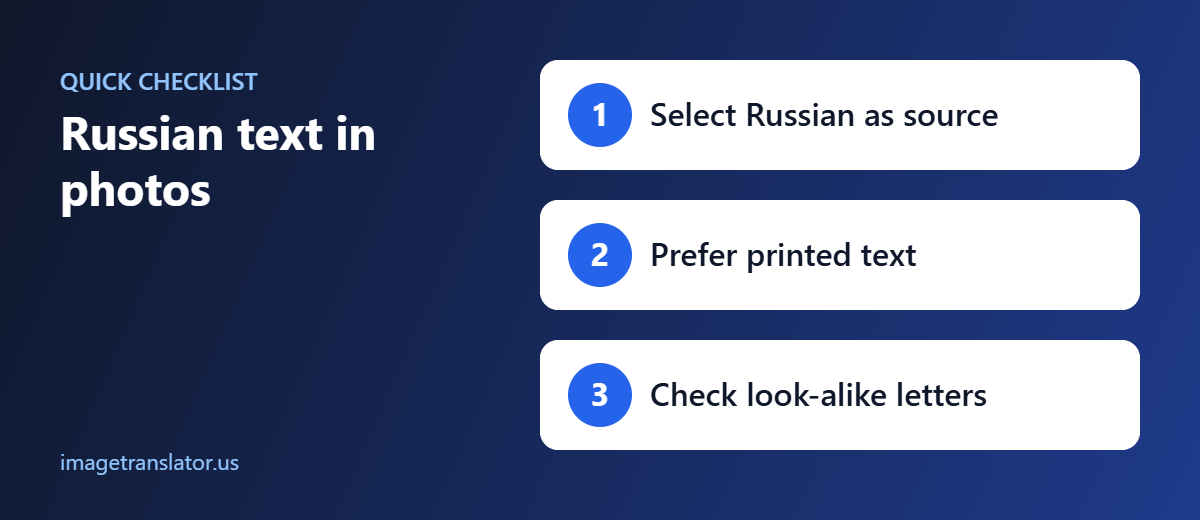
Step 3: Select Russian as the Source Language
Choose Russian as the original or source language.
This helps the OCR system identify the Cyrillic text correctly.
If the image contains multiple languages, make sure the tool supports the languages included in the image and select the appropriate source language when possible.
Step 4: Select English as the Target Language
Choose English as the language you want to translate the Russian text into.
The system can then recognize the Russian writing and generate an English translation.
Step 5: Start the Translation
Upload or process the image to begin the translation.
The image translator analyzes the photograph, identifies the Russian text, extracts the characters, and translates the detected content into English.
Depending on the tool, the translated text may be displayed separately or placed back into the image.
Step 6: Review the English Translation
Once the translation is complete, review the result.
Pay particular attention to:
- Names
- Addresses
- Dates
- Prices
- Phone numbers
- Product codes
- Proper nouns
These details can sometimes be affected by OCR errors, particularly when the original image is low quality.
Common Uses for Russian-to-English Photo Translation
There are many reasons you might want to translate Russian text from a photograph.
Travel
If you’re visiting a Russian-speaking region, you may encounter Cyrillic text on street signs, menus, transportation notices, hotel information, and advertisements.
Instead of trying to type unfamiliar characters into a translation app, you can simply photograph the text and translate the image.
Restaurant Menus
Russian menus can contain unfamiliar words and dish names. Taking a photo of the menu and translating it can help you understand the available options.
Product Labels
Russian-language packaging may contain ingredients, instructions, warnings, or product information.
An image translator can help you understand the text without manually copying it.
Documents and Scanned Pages
Russian documents may be available only as scanned images or photographs. OCR-based translation can provide a quick way to understand the general content.
For legal, immigration, financial, or other official documents, a professional translator may still be required for an accurate or certified translation.
Screenshots
Russian text frequently appears in screenshots from websites, apps, messages, and social media. If the text cannot be selected, image translation can be a convenient alternative.
Books and Printed Materials
Students and researchers may encounter Russian text in books, magazines, brochures, or historical materials. Translating photographs or scans can make these materials easier to understand.
How to Get Better Russian OCR Results
The quality of your photo can significantly affect the accuracy of Russian text recognition.
Use a High-Resolution Image
Higher-quality images generally give OCR systems more detail to work with. Avoid sending heavily compressed or extremely small images when possible.
Keep the Text in Focus
Make sure the camera focuses on the Russian writing. Blurred characters can be confused with other Cyrillic letters.
Avoid Glare and Shadows
Reflections from glossy paper or packaging can hide parts of letters. Strong shadows can have a similar effect.
Try to photograph the text under even lighting.
Take the Photo Straight On
If you photograph a document at a steep angle, the text can become distorted. Positioning the camera parallel to the text usually makes OCR easier.
Crop the Image
If there is a lot of unnecessary background, crop the photograph so that the Russian text occupies more of the image.
Use Standard Fonts When Possible
Printed Russian text in a clear, standard font is usually easier to recognize than highly decorative typography.
Handwriting and artistic lettering may require additional checking.
Can You Translate Russian Handwriting From a Photo?
Translating handwritten Russian is more challenging than translating standard printed text.
People have different handwriting styles, and individual Cyrillic letters can be difficult to distinguish when written quickly. Poor lighting or low image quality can make the problem worse.
If you need to translate handwritten Russian, take the clearest photograph possible and review the result carefully.
For important personal or official documents, consider verifying the translation with someone fluent in Russian.
Can You Translate Russian Screenshots?
Yes. Screenshots are one of the most convenient types of images to translate because the text is often sharp and clearly visible.
You can use image translation for Russian text found in:
- Website screenshots
- Mobile app screenshots
- Online advertisements
- Social media posts
- Chat screenshots
- Digital documents
- Online news images
Instead of retyping the Cyrillic text, upload the screenshot and translate it directly.
Russian Image Translation vs. Copy-and-Paste Translation
Traditional translation tools generally work best when you already have selectable text. But photographs and screenshots often contain text that cannot be copied.
With image translation, the OCR stage extracts the text automatically.
For example:
Traditional method:
Photo → Read Russian → Type Russian → Copy text → Translate
Image translation method:
Photo → OCR → Translate → Read English
This can save considerable time, particularly when an image contains several paragraphs or many separate text elements.
Is Russian Image Translation Accurate?
Translation accuracy depends on both text recognition and machine translation.
A clear photograph containing standard printed Russian text will generally be easier to process than a blurry image, handwritten note, decorative lettering, or text photographed at an extreme angle.
OCR errors can also affect the final translation. If one Cyrillic character is incorrectly recognized, the resulting Russian word may be wrong, which can then affect its English translation.
For this reason, always review important translations rather than relying on an automated result for critical decisions.
Translate Russian Photos to English Online
You don’t need to manually type Cyrillic characters to understand Russian text in a photograph.
With an online image translator such as ImageTranslator.us, you can upload a photo, select Russian as the source language, choose English as the target language, and translate the detected text.
Whether you’re translating a Russian menu while traveling, reading a product label, understanding a screenshot, or working with a scanned document, image translation can make Russian content much more accessible.
Start Translating Russian Images
The process is simple:
Upload your photo → Select Russian → Select English → Translate → Review the result
For the best results, use a clear, well-lit photograph with sharp and readable text.
Try ImageTranslator.us to translate Russian text from photos into English and understand Cyrillic content without manually typing it.
Further Reading
- Russian alphabet: the 33 letters of Russian Cyrillic.
- Cyrillic script: other languages that share the same alphabet.
