

This article is part of our step-by-step guide to translating text in an image online. To translate your own picture right now, use our free image translator.
Looking for online tools rather than phone apps? See our comparison of the best image translator tools.
Need to translate text from a photo without typing everything manually? Modern translation apps can recognize text directly from images and convert it into another language within seconds.
Whether you’re traveling abroad, reading a restaurant menu, translating a document, understanding a product label, or decoding a screenshot, photo translation apps can save time and make foreign-language content much easier to understand.
Both Android and iPhone have several options for translating text from photos. In this guide, we’ll compare some of the most useful apps in 2026 and explain how to choose the right one for your needs.
How Does Photo Translation Work?
Most photo translation apps combine Optical Character Recognition (OCR) with machine translation.
OCR identifies the words and characters inside your photograph. The translation system then converts the recognized text into your chosen language.
The basic process is:
Take or upload a photo → Detect text → Translate → Read or save the result
Some apps translate text directly over the original image, while others extract the text and display the translation separately.
The quality of the result depends on several factors, including image resolution, lighting, font style, text size, and the languages involved.
Google Translate
Available on: Android and iPhone
Best for: Everyday photo and camera translation
Google Translate is one of the most convenient choices for translating text from photos.
The Google Translate mobile app can translate text from images already stored on your phone and, on supported devices, text captured directly through the camera. Users can select the source and target languages or use language detection.
For example, you can photograph a restaurant menu, select the language you want, and view the translated text.
Google also allows users to translate selected portions of an image rather than necessarily translating everything at once.
Key features
- Photo translation
- Camera translation
- Language detection
- Translation of selected image text
- Android and iPhone support
- Offline camera translation for supported downloaded languages
Google states that image translation accuracy can be affected by small, unclear, or stylized text.
Price: Free for standard translation features.
Best for
Google Translate is a practical choice when you want a familiar, general-purpose app for translating signs, menus, screenshots, and other everyday images.
Apple Translate
Available on: iPhone and iPad
Best for: iPhone users who want built-in translation features
Apple provides image and camera translation capabilities through the Translate app and iPhone’s text-recognition features.
On supported iPhones, the Translate app can use the camera to translate text around you, such as restaurant menus and street signs. You can also select a photo from your photo library and translate the text contained in it.
Apple’s Live Text functionality also allows supported iPhones to detect text through the camera and provide actions including translation.
Key features
- Camera translation
- Translation from photos
- Photo-library support
- Live Text integration
- Copy and share translated text
- Save or share translated images
Apple notes that translation availability depends on the supported languages and features available in your region and device.
Price: Free with supported Apple devices and software.
Best for
Apple Translate is particularly convenient if you already use an iPhone and want to translate text without relying on a separate image-processing service.
DeepL
Available on: Android and iPhone
Best for: Users who want image translation alongside DeepL’s translation tools
DeepL’s mobile apps support translating text from images and photos.
On iPhone, users can select the Image option, choose a picture from their camera roll, and receive translated text overlaid on the original. On Android, the workflow uses the Camera and Image options to select a photo.
DeepL also provides options to view the original and translated text separately, copy translated text, and disable the overlay.
Key features
- Image translation
- Photo-library translation
- Text overlay
- Extracted-text view
- Copy translated text
- Android and iOS apps
DeepL warns that small, poorly lit, handwritten, or stylized text may reduce translation quality.
Price: Free and paid options are available, depending on features and usage.
Best for
DeepL can be useful if you already use its ecosystem for written translation and want image translation within the same app.
ImageTranslator.us
Available on: Web browser on Android and iPhone
Best for: Dedicated image-to-image translation
You don’t necessarily need to install a mobile app to translate text in a photo. A browser-based image translator can be particularly convenient when you want to upload an image and translate its contents from one place.
ImageTranslator.us is designed specifically around image translation. You can upload a photo, choose the source and target languages, and process the text contained in the image.
This approach can be useful for users who don’t want to switch between an OCR app and a separate translation service.
Common uses
- Restaurant menus
- Product labels
- Travel photographs
- Screenshots
- Posters
- Signs
- Documents
- Social media images
Best for
ImageTranslator.us is worth considering when your primary task is translating text inside an image, rather than using a broader translation or visual-search app.
Google Lens
Available on: Android and iPhone through supported Google apps
Best for: Text recognition and visual search
Google Lens is more than a translation application. It is Google’s visual-recognition technology and can identify text, objects, products, places, and other visual information.
For translation tasks, Lens can recognize text from photographs and provide translation-related actions.
This makes it useful when you want to do more than simply translate an image—for example, copying text, searching for a product, or looking up information contained in a photograph.
Best for
Google Lens is a good option when translation is only one part of what you want to do with an image.
If your primary goal is creating a translated version of the image, a dedicated image translator may provide a more focused workflow.
Android vs. iPhone: Which Apps Can Translate Photos?
Here’s a quick comparison:
| App | Android | iPhone | Photo Translation | Camera Translation |
| Google Translate | Yes | Yes | Yes | Yes |
| Apple Translate | No | Yes | Yes | Yes |
| DeepL | Yes | Yes | Yes | Yes |
| ImageTranslator.us | Yes, browser | Yes, browser | Yes | Browser-based |
| Google Lens | Yes | Yes* | Yes | Yes |
*Availability and functionality can vary depending on the Google app and device.
Google officially documents image translation on both Android and iPhone.
How to Translate a Photo on Android
If you’re using Android, Google Translate is one of the simplest options.
Step 1: Open Google Translate
Install and open the Google Translate app.
Step 2: Select Your Languages
Choose the original language and the language you want to translate into. You can also use language detection where supported.
Step 3: Tap Camera
Choose the camera option from the app’s home screen.
Step 4: Select an Existing Photo
If the image is already saved on your phone, choose the gallery/image option.
Step 5: Translate
The app detects the text and provides the translation. You can also select particular areas of the image for translation.
How to Translate a Photo on iPhone
iPhone users have several options.
Using Google Translate
Open Google Translate, select the source and target languages, tap Camera, and choose an existing photo from your library. Google supports both camera-based and existing-image translation on iPhone.
Using Apple Translate
Open the Translate app and select the Camera option. You can point the camera at text or choose a photo from your library. Apple allows users to switch languages and share or save the translated image.
Using Live Text
On supported iPhones, point the Camera at text and use the detected-text controls. Apple provides a Translate action for recognized text.
How to Get Better Photo Translation Results
Regardless of which app you choose, the quality of the original image matters.
Use a Clear Photo
Blurry images can cause OCR mistakes. Take the photograph as sharply as possible.
Improve Lighting
Avoid dark areas, strong shadows, and reflections across the text.
Keep the Camera Straight
Photograph documents directly rather than from an extreme angle. This reduces distortion.
Use High Resolution
Small characters are easier to recognize when the image contains sufficient detail.
Avoid Decorative Fonts
Unusual fonts, calligraphy, and stylized text can be harder for OCR systems to recognize.
Google specifically recommends clear images and commonly used fonts for better image translation results.
Can These Apps Translate Handwriting?
Some image translation systems can recognize certain types of handwriting, but handwritten text is generally more difficult to process than clean printed text.
Results can vary depending on:
- Handwriting style
- Image quality
- Lighting
- Character spacing
- Language
- Text size
Google supports translating images such as handwritten notes, but its documentation also warns that unclear or stylized text can reduce accuracy.
For important handwritten documents, review the result carefully.
Which Photo Translation App Should You Use?
The best choice depends on what you need.
For general-purpose translation: Google Translate offers photo and camera translation on both Android and iPhone.
For iPhone users: Apple Translate provides integrated camera and photo translation features, along with Live Text capabilities.
For users already using DeepL: DeepL’s mobile apps provide direct image translation with translated text overlays.
For a dedicated image translation workflow: ImageTranslator.us focuses specifically on translating text contained in images and can be accessed through a mobile browser.
For visual search plus translation: Google Lens is useful when you want to recognize, copy, search, and translate information from the same image.
Final Thoughts
Translating text from photos is easier than ever on both Android and iPhone. You no longer need to manually type foreign-language words before translating them.
Google Translate, Apple Translate, DeepL, Google Lens, and dedicated services such as ImageTranslator.us all provide different approaches to the same basic problem.
For quick travel translation, camera translation can be extremely convenient. For screenshots, menus, product labels, and documents, uploading an existing image may be more practical.
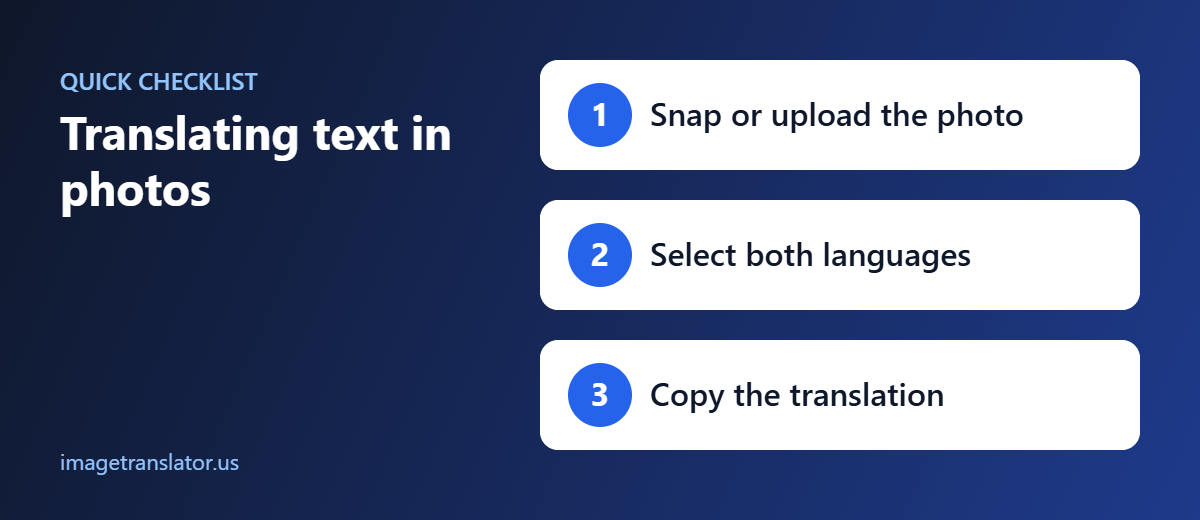
If you want a simple, dedicated way to translate text in photos online from your Android or iPhone, try ImageTranslator.us. Upload your image, select the languages, and translate the text without manually typing it.
Further Reading
- Optical character recognition (OCR): how software reads text from images.
- Machine translation: how automatic translation works and where it falls short.
