

This article is part of our complete guide to image translation for business and documents. To translate your own picture right now, use our free image translator.
PDF files are one of the easiest ways to share documents, but translating them can become a little tricky when the translation tool you want to use does not accept PDF files.
This is especially common when the PDF contains scanned pages, screenshots, menus, brochures, or other content where the text is actually part of an image.
The good news is that you do not need to give up. You can turn the PDF page you need into an image and then translate that image instead. This method works well for individual pages and is also useful when you only need to translate a small part of a larger document.
Here is a simple way to do it.
Why Convert a PDF Page Into an Image?
A PDF and an image are handled differently by translation tools.
A PDF may contain editable text, scanned pages, graphics, or a mixture of all three. An image translator, on the other hand, is designed to recognize text directly from an image.
So, if your translation tool does not support PDF uploads, converting the required page into JPG or PNG gives you another route.
It is particularly useful for:
- Scanned documents
- PDF menus
- Product catalogs
- Brochures
- Posters saved as PDFs
- Screenshots inside PDFs
- Foreign-language worksheets
- Individual pages from books
Instead of converting the entire document, you can simply work with the page you actually need.
Step 1: Open Your PDF
First, open the PDF on your computer or phone.
You can use a PDF reader such as Adobe Acrobat or another application that supports PDF files.
If you only need one page, note its page number before converting anything. This saves time, especially when the PDF contains dozens or hundreds of pages.
Step 2: Convert the Page to an Image
The next step is to create an image from the PDF page.
Adobe Acrobat supports exporting PDF content to image formats such as JPEG, PNG, TIFF, and JPEG 2000. Its current instructions also allow users to export PDF pages as images.
If you are using Acrobat, you can open the PDF, choose the conversion or export option, select an image format, and save the result.
For most online translation tasks, JPG or PNG is usually a practical choice.
Which Format Should You Choose?
JPG is useful when you want a smaller file that is easy to upload.
PNG can be a better choice when the page contains sharp text, screenshots, diagrams, or graphics where you want to retain clear edges.
If the PDF page contains very small text, avoid reducing the image quality during conversion.
Step 3: Convert Only the Page You Need
You do not necessarily have to convert every page of a PDF.
For example, imagine you have a 50-page document but only page 12 is written in a language you do not understand. Converting all 50 pages creates unnecessary files and extra work.
Instead, export page 12 as an image and translate that page.
This approach is faster and makes it easier to review the translated result.
Step 4: Upload the Image to a Translator
Once you have the PDF page as an image, you can upload it to an image translation tool.
For example, Image Translator lets you upload a photo, select the source and target languages, and receive a translated version of the image. The site supports common image formats such as PNG, JPG, and WEBP.
This is where converting the PDF page first becomes useful. Instead of trying to upload an unsupported PDF, you are providing the translator with the image format it is designed to process.
Step 5: Select the Languages
After uploading the page, select the language used in the PDF and the language you want to translate it into.
For example:
From: German
To: English
If you do not know the original language, use automatic language detection when the tool provides that option.
For short text, however, automatic detection can sometimes be less reliable, so selecting the source language manually may help.
Step 6: Let the Tool Read the Page
An image translator normally uses OCR, or optical character recognition, to identify the text inside the image.
The recognized text is then translated into the target language.
Image Translator explains that its process combines OCR with machine translation and can place the translated text back onto the image.
This is different from simply copying text out of a PDF because the original page can remain visually useful after translation.
What If the PDF Is a Scanned Document?
Scanned PDFs are a common reason people need this method.
A scanned document may look like it contains text, but each page can actually be a picture. In that situation, normal text selection may not work.
Converting the scanned page to an image gives an OCR-based translator a direct picture to analyze.
The quality of the scan matters, though. A clean scan with sharp characters will normally be easier for OCR software to recognize than a faded or blurry scan.
How to Get Better Results
A few simple changes can make a noticeable difference.
Use a High-Resolution Page
Avoid converting the PDF into a very small image. Small letters can become difficult to recognize.
Keep the Page Straight
If the PDF page is already straight, keep it that way. If you are using a photographed document, try to avoid strong angles.
Crop Unnecessary Areas
If the page has large empty spaces, advertisements, or unrelated graphics, cropping the image can make the important text easier to process.
Check the Font
Decorative fonts can be harder for OCR systems than ordinary printed text.
If the PDF uses unusual typography, always review the translated result.
Check the Original After Translation
OCR can occasionally misread a character. This can happen with numbers, names, symbols, handwriting, or low-quality scans.
If something looks unusual, compare the translated result with the original PDF page.
Can Google Translate Translate a PDF Directly?
Google Translate currently supports document translation, including PDF files, on supported desktop experiences. Google states that documents can be up to 10 MB and PDF files can be up to 300 pages. However, Google also notes an important limitation: text found in images and scanned PDF pages is not translated in the document output.
That is why converting a PDF page into an image can still be useful when the content you need is embedded in a scanned page or image.
Once converted, Google Translate’s image feature can process the image itself. Its current image translation instructions allow users to upload an image, choose the source and target languages, copy translated text, and download a translated image.
A Simple Workflow for PDF Image Translation
If you regularly work with PDFs, you can follow this basic workflow:
PDF → Select Page → Convert to JPG/PNG → Upload Image → Choose Languages → Translate → Review
This avoids unnecessary steps.
You do not need to convert an entire PDF when only one page matters. You also do not need to manually retype the words before translating them.
What About Translating Many PDF Pages?
If you need to translate an entire large PDF, converting every page individually can become time-consuming.
For a small number of pages, the image method is practical. For a large document, a dedicated document translation workflow may be more appropriate.
You should also remember that translating a document and preserving its original formatting are two different tasks. If the final file needs to look exactly like the original, you may need additional editing after translation.
Is This Method Useful on a Phone?
Yes.
Modern mobile PDF applications can export pages as images, although the exact options depend on the app and device. Adobe’s current mobile documentation, for example, describes exporting PDF pages to image formats and saving them to the device.
Once the page is saved as an image, you can open an image translation website from your mobile browser and upload it.
This can be handy when someone sends you a foreign-language PDF through email or a messaging app and you only need to understand one page.
Final Thoughts
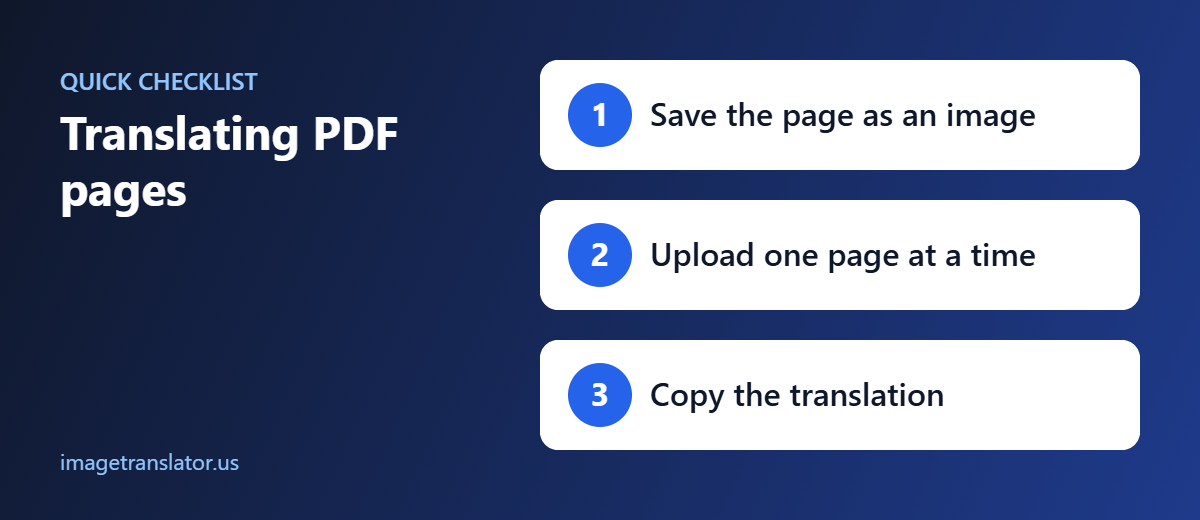
When a PDF cannot be uploaded directly to the image translation tool you want to use, converting the required page into an image is a simple workaround.
Start by opening the PDF and identifying the page you need. Export that page as a JPG or PNG, keeping the image quality high. Then upload the image to a translation service such as Image Translator, select the languages, and let the tool recognize and translate the text.
For scanned PDFs and image-based documents, this method can be especially helpful because the translator works directly with the visual content.
The key is to use a clear, high-quality image and always check the translated result against the original when the information is important. For legal, medical, financial, or official documents, an online translation should be treated as a helpful first step rather than a replacement for a professional translation.
Further Reading
- PDF: how the PDF format stores text and images.
- Optical character recognition (OCR): how software reads text from images.
