

Quick answer: If your image translation came out wrong, the problem is almost always in the photo, not the translator. Image translation has two steps — first the tool reads the text in the picture (OCR), then it translates what it read. When the first step misreads a character, the second step translates the mistake faithfully. The nine OCR mistakes below cause nearly every bad result, and eight of them are fixed in seconds by retaking the photo.
Try the free image translator with a clear photo and see the difference — sharp text in, accurate translation out.
Why Image Translation Goes Wrong
It helps to know what happens when you upload a photo. First, optical character recognition (OCR) scans the image and works out which marks are letters, which letters they are, and what order they go in. Then a translation engine converts that text into English. The translation engine only ever sees the OCR result — if OCR reads “exit” as “exlt”, you get a translation of “exlt”.
That is why the same tool can translate one photo perfectly and mangle the next. The difference is the image. Work through the nine mistakes below, and check your photo against each one before blaming the translator.
1. Blur — the Single Biggest Cause
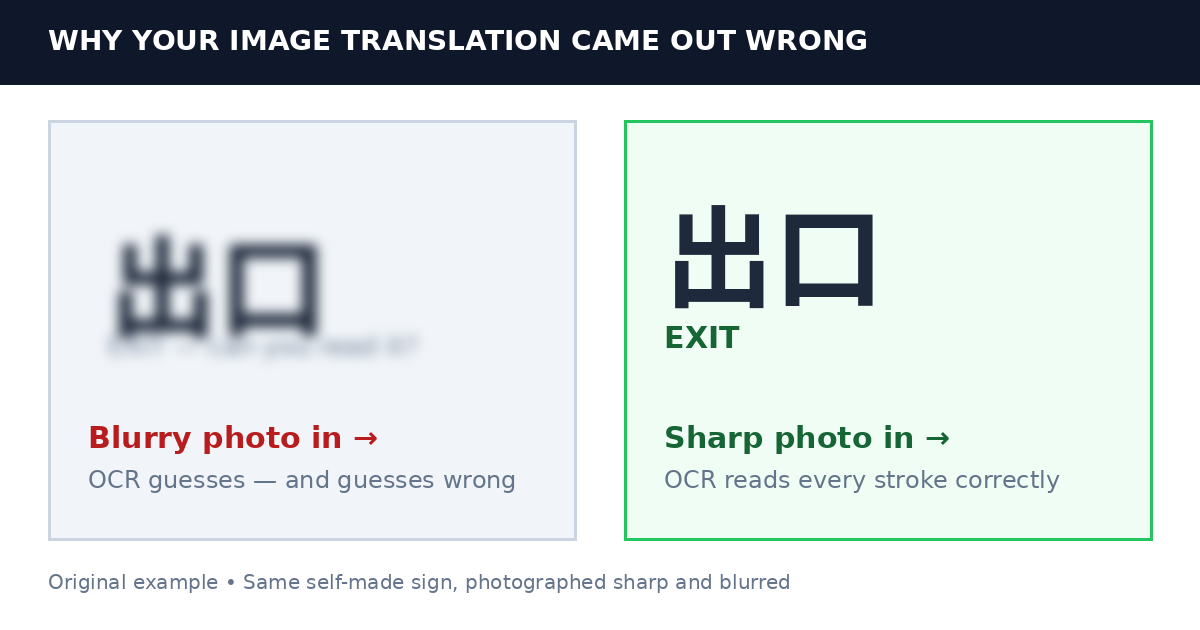
A shaky hand, a moving subject or a camera that focused on the background instead of the text will blur the fine strokes that separate one character from another. In Japanese and Chinese, a single blurred stroke can turn one kanji into a completely different one. In Latin scripts, blur merges letters: “rn” becomes “m”, “cl” becomes “d”.
How to fix it: Hold the phone with both hands or brace it against something solid. Tap the screen on the text itself so the camera focuses there. Take two or three shots and use the sharpest. If the sign is far away, walk closer instead of zooming in — digital zoom just enlarges the blur.
2. Glare and Reflections
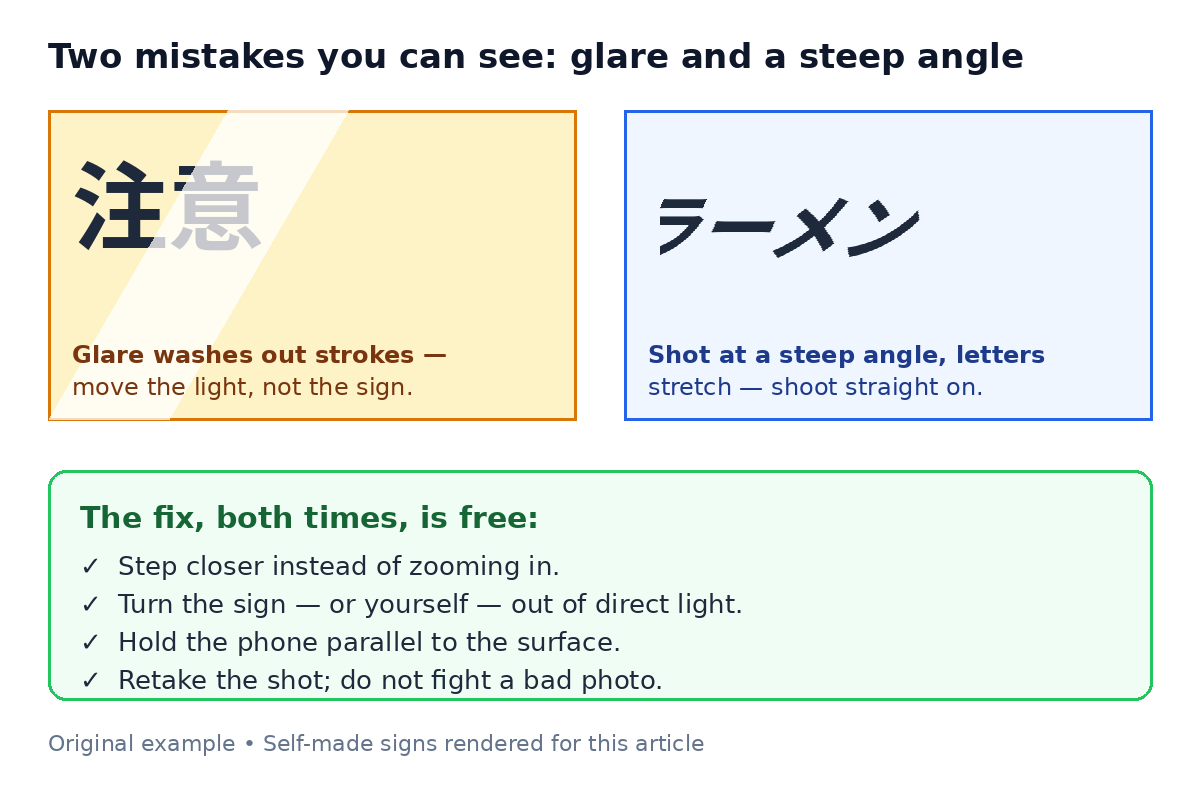
Sunlight on a laminated menu, a flash reflected in a glass cabinet, or a window behind you can wash out whole words. OCR sees a white patch where the text should be and either skips it or guesses. Glossy surfaces — menus, product packaging, framed notices — are the worst offenders.
How to fix it: Move yourself, not the sign. Step to one side so the light falls at an angle, or shade the surface with your body. Turn the flash off. For a glossy menu, tilting the phone slightly often moves the reflection off the text. If you are photographing a screen, turn the screen brightness up and the room light down.
3. A Steep Angle (Perspective Distortion)
Photographing a sign from the side stretches the letters: characters on the far side get compressed and lines converge. OCR expects roughly rectangular text, so a steep angle can make even large, clear letters unreadable — especially in scripts with dense characters such as Japanese, Chinese and Korean.
How to fix it: Stand directly in front of the text and hold the phone parallel to the surface. For a page in a book, flatten it and shoot from above. If you cannot get square-on — a high street sign, for example — get as close to straight as you can and crop tightly around the text.
4. Text Too Small or Resolution Too Low
Small print — ingredients on a packet, footnotes on a form, captions on a screenshot — packs a lot of characters into very few pixels. When each character is only a few pixels wide, OCR cannot tell similar characters apart, and fine detail such as accents and diacritics disappears entirely. Heavily compressed images from messaging apps have the same problem: compression smears the edges of letters.
How to fix it: Crop to the section you need and translate that on its own, rather than uploading a whole page at once. Photograph small print from closer up. If the image came from a chat app, ask for the original file instead of the compressed version. And keep the original photo — screenshots saved at full resolution translate far better than re-photographed screens.
5. Handwriting
Printed text is consistent: every “a” looks like every other “a”. Handwriting is not. Cursive joins letters together, personal styles vary wildly, and in scripts such as Korean and Arabic, handwritten strokes merge in ways that confuse even good OCR. Neat, separated handwriting usually works; fast cursive often does not.
How to fix it: Photograph handwriting in bright, even light and as close as the camera will focus. Translate short sections at a time rather than a whole page — context helps the translator, but only if the reading is right. If a handwritten note matters — a prescription, an address, a legal note — treat the photo translation as a rough draft and have a person who reads the language check it. Our guide to translating handwritten notes goes into more detail.
6. Decorative and Stylised Fonts
Calligraphy, brush script, gothic lettering, retro signage and novelty fonts all break the assumptions OCR is built on. Letters may be joined, flourished, stretched or drawn with varying thickness. Manga and comic lettering is a classic case: sound effects and hand-drawn titles are designed to look exciting, not to be read by software.
How to fix it: Crop tightly around the stylised text so the tool is not distracted by artwork. If the same words appear in plainer text elsewhere in the image — a subtitle, a caption, a printed label — translate that version instead. For manga pages, crop individual speech bubbles one at a time; our guide to translating comics and manga pages explains the bubble-by-bubble method.
7. Curved and Wrapped Text
Text on a bottle, a can, a curved sign or a cylindrical package bends away from the camera at the edges. The middle reads fine; the edges compress and curve, and OCR either drops those words or reads them in the wrong order. The same problem appears with text that follows a circular badge or an arch.
How to fix it: Photograph the curved surface in overlapping sections, keeping each section as flat to the camera as possible, and translate them separately. For a bottle label, rotate the bottle and take one photo per face rather than trying to capture the whole wrap in a single shot.
8. Busy Backgrounds and Low Contrast
Text printed over a photograph, a pattern or a gradient is hard to separate from its background. White text on a pale sky, dark text on a dark wood panel, or lettering laid over a busy illustration all reduce contrast — and OCR needs contrast to find where letters begin and end. Watermarks and background graphics make it worse.
How to fix it: Crop out as much background as possible so the tool concentrates on the text. If you can, increase contrast before uploading: most phone photo editors have a contrast or brightness slider, and a small boost often makes the difference. Black text on a white background is the ideal — anything close to that will translate well.
9. The Wrong Source Language — or Two Languages at Once
This one is not a photo problem at all, and it is the easiest to fix. If the tool is set to translate from French but the photo is in Spanish, or if it is auto-detecting and guesses wrong on a short sign, the result will be nonsense. Mixed-language photos — a Korean menu with English dish names and prices, a Japanese sign with Chinese characters — can also confuse auto-detection, because the tool has to decide which language it is looking at.
How to fix it: Set the source language yourself instead of relying on auto-detect, especially for short text. If the photo mixes languages, set the main one and let the tool leave the rest alone — most translators pass through words that are already in the target language. For a photo with two languages in roughly equal amounts, split it into two crops and translate each with the right source language.
Translate your photo now — set the source language, upload a clear shot, and check the result against the original image.
The 60-Second Checklist Before You Upload
Run through this list and most bad translations disappear:
- Is the text in focus? Tap the screen on the words before you shoot.
- Is there glare or shadow across any line? Move until there is not.
- Are you square-on to the text, or shooting at an angle?
- Is the text large enough to read comfortably on your phone screen?
- Is the source language set correctly?
- Have you cropped out background that does not matter?
- Does the result make sense in context — a menu item that sounds like food, a sign that sounds like a direction?
If you answered no to any of the first six, retake the photo. It takes ten seconds and fixes more translations than any settings change. For more on getting the shot right, see our tips for taking photos that translate accurately.
Frequently Asked Questions
Why is my image translator not working?
Most of the time it is working — it is reading a poor photo. Blur, glare, a steep angle or tiny text are the usual causes. Retake the photo sharper, straighter and closer, and try again before switching tools.
Why did my image translation come out wrong?
Because the OCR step misread something in the image. Check the recognised text if the tool shows it: a single misread character, especially a number or a name, is usually the culprit. The nine mistakes above cover nearly every case.
Can an image translator read handwriting?
Neat, clearly separated handwriting often translates well. Fast cursive, joined-up script and stylised handwriting are much harder, and the result should always be checked by a person who reads the language.
Why does the translator get numbers and prices wrong?
Numbers are small, dense and easy to misread — a 3 becomes an 8, a 1 becomes a 7 — and the translation engine cannot know the right figure from context. Always verify prices, dates, dosages and measurements against the original photo yourself.
Does a better translator fix a bad photo?
No. Every image translator starts from the same OCR step, and no translation model can recover text that was never read correctly. A better tool helps at the margins; a better photo helps everywhere. See how to translate text in an image online for the full process.
Bottom Line
A wrong image translation is almost never a mystery. It is blur, glare, angle, size, handwriting, fancy fonts, curved surfaces, low contrast or the wrong language setting — usually one of them, sometimes two. Fix the photo and the translation fixes itself. And when the information matters — medicine, contracts, immigration papers — treat any photo translation as a first read and get a human translator to confirm it.
